Mubasher NetPlus provides you with a a wide range of columns for your Watch Lists / Market Watch and you can add and remove the displayed columns based on the details you need to view. You can also sort the data in the columns based on your requirement.
You can add/remove columns based on your preference to the Watch List or Market Watch at any time from the list of available columns .
To add column/s to Watch List/ Market Watch:
| 1. | Right-click on any Watch List or Market Watch column header. |
| 2. | On the Right Click menu > Select Column Settings. This displays the Columns Settings window. |
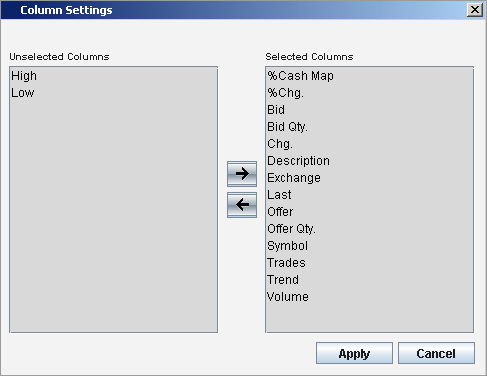
In the Columns Settings window:
| 3. | Select the required column from the Unselected Columns section and click on the  button to move it to the Selected Columns section. button to move it to the Selected Columns section. |
| 4. | Click on the Apply button to apply the selection. |
Tip: Selecting a column from the Selected Columns section and clicking on the  button to move it to the Unselected Columns section removes the relevant column from the Watch List or Market Watch once the Apply button is clicked.
Column Settings window
To remove column/s from a Watch List/ Market Watch:
| 1. | Right-click on the column header of the column you need to remove on a Watch List or Market Watch . |
| 2. | On the Right Click menu > Select Remove Column. This removes the selected column from the Watch List/Market Watch. |
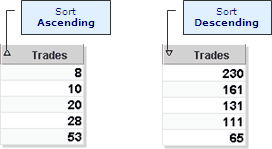
The columns on the Watch Lists/Market Watch can be easily sorted in either ascending or descending order.
To sort a column on a Watch List/ Market Watch:
| • | Click on the column header and the data will get sorted accordingly. |
Tip: An arrow is displayed to indicate the sort order.
Sorting Columns